Red Phone Signal: What It Means and How to Fix It

Red Phone Signal: 9 Fast, Proven Fixes for Android + iPhone
Last checked: December 24, 2025 | Review cadence: Monthly
What changed in this update:
- Added a faster “outage vs SIM vs phone” decision flow for red phone signal troubleshooting.
- Expanded “bars but no data” vs “bars but no calls” checks to reduce false fixes.
Next review date: January 24, 2026
Red phone signal usually means your phone cannot connect to your cellular network normally, or it’s stuck in an emergency-only state. On some phones it shows as red bars; on others it shows SOS / SOS Only, No Service, Searching, an X over the signal, or Emergency calls only.
This guide fixes a red phone signal fast with a 2-minute checklist, then walks you through the exact icon you see and the best next steps for Android and iPhone.
Quick Fix Checklist for Red Phone Signal (2 minutes)
Do these in order. Most red phone signal cases resolve in steps 1–4.
- Airplane Mode: Turn ON for 15 seconds, then OFF.
- Restart your phone (full reboot, not just screen off/on).
- Check the exact icon/text: SOS/SOS Only, No Service, Searching, X on bars, Emergency calls only.
- Mobile data toggle (Android): Turn Mobile Data OFF, wait 10 seconds, turn ON.
- SIM/eSIM refresh: Reseat physical SIM, or toggle your eSIM line OFF/ON.
- Move 200–500 meters (coverage test). Indoors can create a red phone signal even in “good” areas.
- Disable VPN temporarily (some configs break carrier services or provisioning apps).
- Check for carrier outage/account issues (another phone on the same carrier helps confirm).
- If iPhone: check for a carrier settings update (Settings → General → About).
Mini decision flow (fast diagnosis)
- If multiple phones on the same carrier fail in your area → likely carrier outage / tower issue.
- If your SIM fails in another phone too → likely SIM damage or account/provisioning issue.
- If another SIM works in your phone → likely your SIM/eSIM profile needs replacement or reprovisioning.
- If no SIM works in your phone anywhere → likely network settings or hardware.
- If you only lose service in one building → likely coverage/indoor signal (try Wi‑Fi calling).
Red signal bars on phone: what it means
A red phone signal is not a universal standard across every brand. In real-world use, it commonly points to one of these situations:
- No service / not registered: your phone can’t register on your carrier network.
- Emergency-only state: you may see “Emergency calls only” (Android) or “SOS / SOS Only” (iPhone), meaning normal service isn’t available.
- Data path broken: you might see bars but data doesn’t work, or an X appears on Android.
- SIM/eSIM issue: SIM not detected, eSIM line disabled, or provisioning failure.
Identify the exact icon you see (the fastest way to fix red phone signal)
To fix a red phone signal quickly, match your status bar to the correct path below. This prevents wasted steps.
| What you see | Meaning (usually) | Do this first |
|---|---|---|
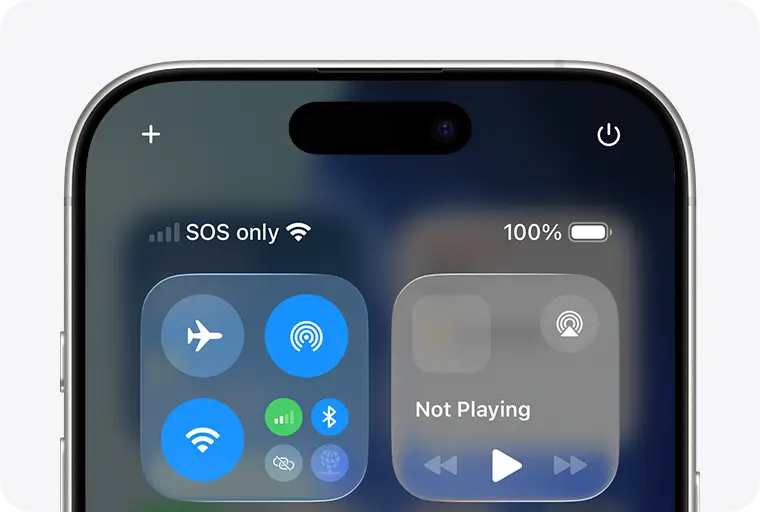
| SOS / SOS Only (iPhone) | Not connected to your carrier; emergency calling may still work. | Airplane toggle → restart → check carrier settings update → check SIM/eSIM line enabled. |
| No Service / Searching (iPhone) | Coverage, provisioning, or carrier issue; not registered. | Airplane toggle → restart → reseat SIM → check carrier settings update → check outage/account. |
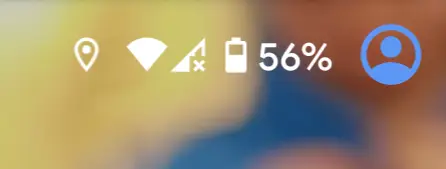
| X on signal bars (Android) | Data/service unavailable or disabled (varies by brand). | Turn Mobile Data ON → check SIM state → network mode Auto → reset network settings if needed. |
| “Emergency calls only” (Android) | Not registered for normal service; emergency calling may work. | Toggle Airplane Mode → reboot → manual network select → confirm plan/SIM not barred. |

If you see SOS or SOS Only on iPhone
Meaning: Your iPhone isn’t connected to your carrier network normally. Depending on country/carrier support, emergency calling may still work.
Do this first: Airplane Mode ON for 15 seconds → OFF, restart the iPhone, then check if your SIM/eSIM line is enabled (Settings → Cellular / Mobile Data).
If it still fails: Check for a carrier settings update (Settings → General → About), update iOS, then contact your carrier to confirm outages or account/provisioning issues.
If you see No Service or Searching on iPhone
Meaning: Your iPhone can’t register on a network in your current location, or your line/SIM provisioning is failing.
Do this first: Move to a different location, then Airplane toggle and restart. Reseat the SIM if physical.
If it still fails: Update iOS, check carrier settings update, confirm your plan is active, and test the SIM in another phone (or ask for a replacement SIM/eSIM profile).
If you see an X on the signal bars on Android
Meaning: Often indicates cellular data or service isn’t working as expected (the exact meaning depends on brand/skin).
Do this first: Turn Mobile Data ON, toggle it once, then ensure your SIM is enabled (Settings → SIMs / Mobile Network).
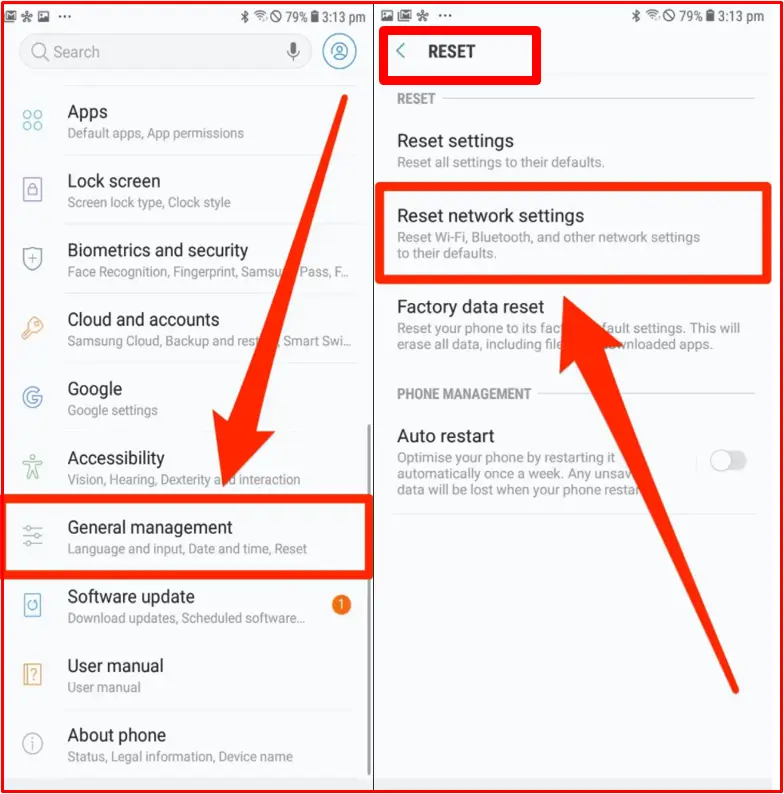
If it still fails: Set network mode to Auto (5G/LTE), try manual network selection once, then reset network settings if the red phone signal keeps returning.
If it says “Emergency calls only” on Android
Meaning: Your phone can see a cellular network but isn’t registered for normal service (SIM/account/provisioning or coverage issues are common).
Do this first: Toggle Airplane Mode, restart, and move to a different location to rule out weak coverage.
If it still fails: Test SIM in another phone, confirm plan status with carrier, and perform network settings reset if needed.
Root causes of a red phone signal (fast diagnosis)
Most red phone signal reports boil down to one of these buckets. Diagnose first, then fix.
| Symptom | Likely cause | Best first step |
|---|---|---|
| Red phone signal in one building only | Indoor coverage/interference | Try outdoors → enable Wi‑Fi calling → use 5GHz Wi‑Fi |
| Red phone signal everywhere + other phones okay | SIM/eSIM provisioning or settings | Reseat SIM/toggle eSIM → network mode Auto → reset network settings |
| Multiple phones on the same carrier fail | Carrier outage/tower maintenance | Wait + restart later → contact carrier |
| Bars show, but no internet works | Mobile data disabled / APN / data roaming / plan issue | Toggle Mobile Data → test another app → verify plan/data pack |
Bars but no internet vs bars but calls fail (two different fixes)
A red phone signal complaint often includes “I have bars but nothing works.” That can mean data is broken or calls are broken. The fix path is different.
Bars but no internet (data path)
- Toggle Mobile Data OFF/ON (Android), then test a browser and a messaging app.
- Disable Data Saver and any “restricted data” settings for your apps.
- Check APN only if needed: If you recently changed APN/VPN, reset network settings first (cleaner).
- Carrier check: Confirm your plan has active data (especially after plan renewal or billing issues).
Bars but calls fail (voice path)
- Toggle Airplane Mode (forces re-registration for voice).
- Try VoLTE / 4G Calling toggle (if supported) and test again.
- Check call barring / account status (carrier can restrict outgoing calls for billing or verification).
- SIM provisioning: If your SIM fails voice but data works, carrier may need a reprovision on your line.
Fix red phone signal on Android (step-by-step)
Follow these steps in order and stop when the red phone signal clears. Test after each step (don’t do everything at once).
- Airplane Mode: ON 15 seconds → OFF.
- Restart: full reboot.
- Mobile Data: turn ON and toggle once. Also confirm SIM is enabled (dual SIM phones can disable one line).
- Reseat SIM: power off, remove SIM, wipe gently, reinsert, power on.
- Network mode: set to Auto (5G/LTE). Avoid forcing 3G/2G unless you’re troubleshooting in a rural area.
- Manual network selection: select your carrier manually once, then return to Auto.
- Update: Android system update + Carrier Services update (if your phone has it).
- SIM swap test: Put your SIM in another phone. If the red phone signal follows the SIM, it’s not your device.
Before you reset network settings (Android):
- It typically removes saved Wi‑Fi networks and Bluetooth pairings.
- It can reset VPN and some carrier/APN-related settings.
- If possible, note your important Wi‑Fi passwords first.
Brand menu paths (quick help)
- Samsung (One UI): Settings → Connections → Mobile networks → Network mode / Network operators
- Google Pixel: Settings → Network & Internet → SIMs → Preferred network type
- Xiaomi (MIUI/HyperOS): Settings → SIM cards & mobile networks → Preferred network type
- OPPO/Realme (ColorOS): Settings → Mobile network → SIM → Preferred network type
Fix red phone signal on iPhone (step-by-step)
On iPhone, a red phone signal report usually corresponds to “SOS / SOS Only,” “No Service,” or “Searching.” Use this Apple-aligned order.
- Check coverage: try a different location (indoors vs outdoors).
- Airplane Mode: ON for 15 seconds → OFF.
- Restart iPhone: full reboot.
- Carrier settings update: Settings → General → About (wait 30 seconds; update prompt may appear).
- SIM / eSIM check: If physical SIM, reseat it. If eSIM, confirm the line is enabled (Settings → Cellular).
- Update iOS: Settings → General → Software Update.
- Travel/roaming: if you’re traveling, verify data roaming and correct carrier plan support.
- Contact your carrier: confirm outages, account restrictions, and line provisioning (especially if SOS Only persists).
Before you reset network settings (iPhone):
- It removes saved Wi‑Fi networks and passwords.
- It removes Bluetooth pairings.
- It resets some cellular/network configurations. You’ll reconnect to Wi‑Fi and re-pair devices after.
When it’s not your phone (outage, account, or SIM problems)
If a red phone signal starts suddenly, it’s often not a hardware failure. Use these fast isolation tests:
- Outage test: Ask someone on the same carrier in your area. If they also fail, it’s likely a tower/outage issue.
- SIM test: Put your SIM in another unlocked phone. If the red phone signal follows, request a SIM replacement or reprovision.
- Account test: Confirm your plan is active, not suspended, and your SIM isn’t barred for billing/verification.
What to tell your carrier (copy-paste script)
Use this script to resolve red phone signal issues faster (works for India/US/UK/global). Replace the brackets:
Hi, I’m having a red phone signal / no service issue.
Location: [City + Area + ZIP/Pincode]
Device: [Model], OS: [Android/iOS version]
SIM type: [Physical SIM / eSIM]
Status icon: [SOS / No Service / Searching / X on bars / Emergency calls only]
What I tried: Airplane toggle, reboot, SIM reseat/eSIM toggle
SIM test: [Works / Does not work] in another phone
Please check: outages, account restrictions, and line provisioning (and IMEI registration rules if applicable).
Avoid scams while fixing a red phone signal
When people see a red phone signal, they often Google fast and click the first “support” result. That’s exactly when scams work.
Red flags (avoid these):
- Fake carrier phone numbers from ads asking for OTP, UPI, or card details.
- Remote-access apps requested by “support” (they can take over your phone and accounts).
- “Signal booster apps” that request Accessibility permissions or device admin access.
If you think you clicked a phishing ad while searching for a red phone signal fix, read this safety guide:
Amazon account attackers and phishing tricks (how scams steal logins)
.
Prevent red phone signal problems from happening again
- Enable Wi‑Fi calling (if supported) for places where you often see a red phone signal (home/office).
- Keep OS updates current (carrier configuration and modem fixes often ship quietly).
- Document your SIM/eSIM details (carrier can reprovision faster if you have account identifiers ready).
- Consider a backup eSIM if your area has frequent outages or weak coverage on one carrier.
FAQs
What does red phone signal mean?
A red phone signal usually means your phone can’t connect to your carrier network normally, or it’s in an emergency-only state. The exact meaning depends on your phone and the icon shown (SOS, No Service, X icon, Emergency calls only).
Why did my red phone signal appear suddenly?
The most common reasons are tower/outage issues, indoor coverage drops, SIM/eSIM provisioning problems, or a temporary registration glitch fixed by airplane mode and a reboot.
Can I still call emergency services with a red phone signal?
Often yes. Many “SOS” or “Emergency calls only” states still allow emergency calling, but availability can vary by country, network, and device state.
Why do I have bars but no internet?
That usually indicates a data-path issue: mobile data is off, data saver restrictions, APN/VPN problems, or your plan/data pack isn’t active. Start by toggling mobile data and testing in another location.
What does SOS Only mean on iPhone?
SOS Only typically means your iPhone can’t connect to your carrier for normal service. Try airplane toggle, restart, check for carrier settings update, and verify your SIM/eSIM line is enabled.
What does an X on signal bars mean on Android?
On many Android phones, an X indicates cellular data/service isn’t available or isn’t working as expected. Confirm mobile data is enabled, check SIM status, and ensure the network mode is set to Auto.
Will resetting network settings delete my photos or apps?
No, it won’t delete photos or apps. But it commonly removes saved Wi‑Fi networks, Bluetooth pairings, and resets some network-related settings.
When is a red phone signal a hardware problem?
If no SIM works in your phone anywhere, and a factory-reset-level network reset doesn’t help, hardware becomes more likely (antenna/modem damage). It’s still worth confirming with a carrier test first.
Should I replace my SIM or switch to eSIM?
If your SIM fails in multiple phones, replacement is a strong move. eSIM can be more convenient for reprovisioning, but SIM vs eSIM depends on your carrier and device support.
Official references used
These official references help interpret icons and align the red phone signal fix steps with manufacturer guidance:
- Apple Support: If you see No Service, Searching, or SOS on your iPhone
- Apple Support: About iPhone status icons (including SOS/SOS Only)
- Samsung Support: Indicator icons (general icon meanings)
- Sony Xperia Help Guide: Status bar/status icons (varies by model)
https://helpguide.sony.net/mobile/xperia-1m5/v1/en/contents/status_bar_notification_panel.html
Update policy
This red phone signal guide is reviewed monthly and updated sooner if major iOS/Android UI paths change or official manufacturer guidance is updated.
Changelog: December 24, 2025 – Added outage/SIM/device decision flow, improved icon formatting, added “bars but no data vs calls” section, and added official references.