Xbox Cloud Gaming in 2026: Complete Guide (Setup, Devices, Games, Pricing & Performance)

Xbox Cloud Gaming in 2026: Setup, Supported Devices, Games, Pricing & Fixes
Updated: December 20, 2025 (guide for 2026)
What changed in this update:
- Added a compact “Fix my problem” jump row (no manual TOC).
- Expanded troubleshooting for audio delay, blurry video/pixelation, and login/cookie issues.
- Converted all key tables into clean HTML tables and added FAQPage + HowTo + BreadcrumbList schema.
Xbox Cloud Gaming 2026 explainer: setup, supported devices, controllers, pricing basics, performance tips, and fixes in one guide.
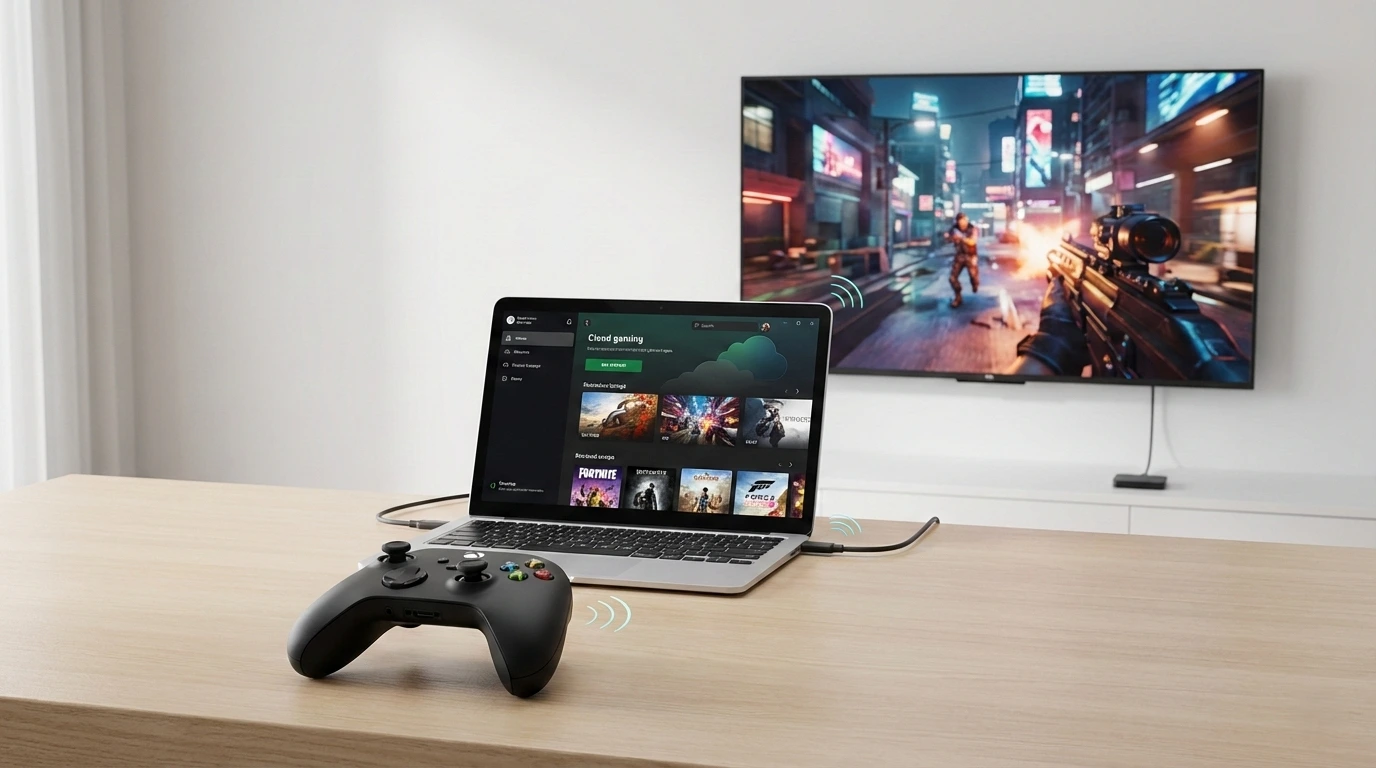
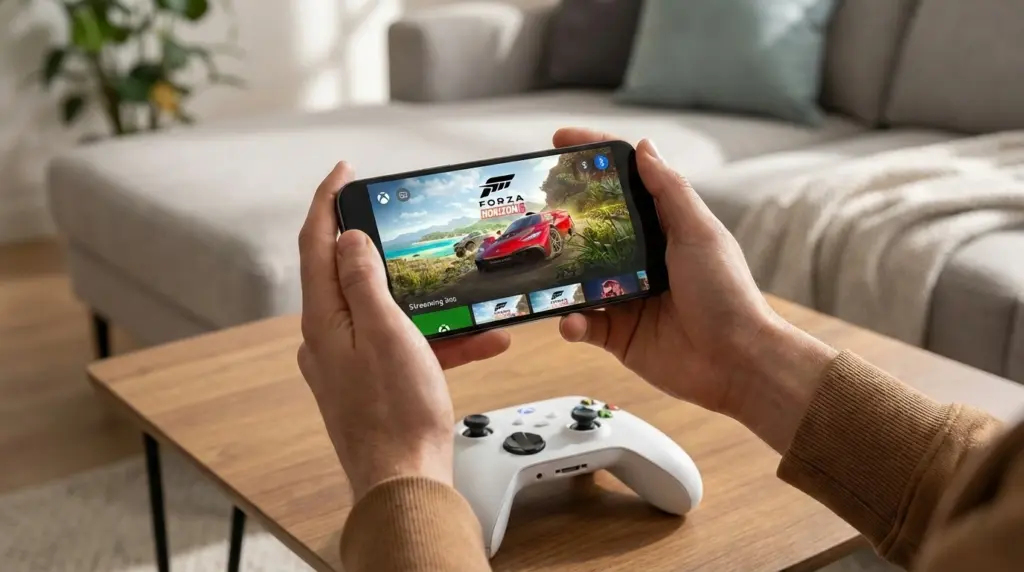
Xbox Cloud Gaming lets you play games streamed from Microsoft servers to your phone, laptop, browser, or supported smart TV without installing the full game locally.
If you want the bigger picture on why streaming play is growing fast, read our
cloud gaming surge breakdown.
Fix my problem:
| Lag/input delay | Queue too long | Controller not working | Black screen / stuck loading | No sound / audio delay | Blurry video / pixelation |
|---|---|---|---|---|---|
| Fix lag | Fix queue | Fix controller | Fix black screen | Fix audio | Fix blurry video |
TL;DR – Quick setup and what you need
Xbox Cloud Gaming is best if you want instant access to games on devices you already own, especially for single-player and co-op.
It is less ideal if your internet is unstable or you only play ranked competitive shooters where latency matters most.
- What you need: a Microsoft/Xbox account, a supported device, and a stable connection (Wi-Fi is strongly recommended).
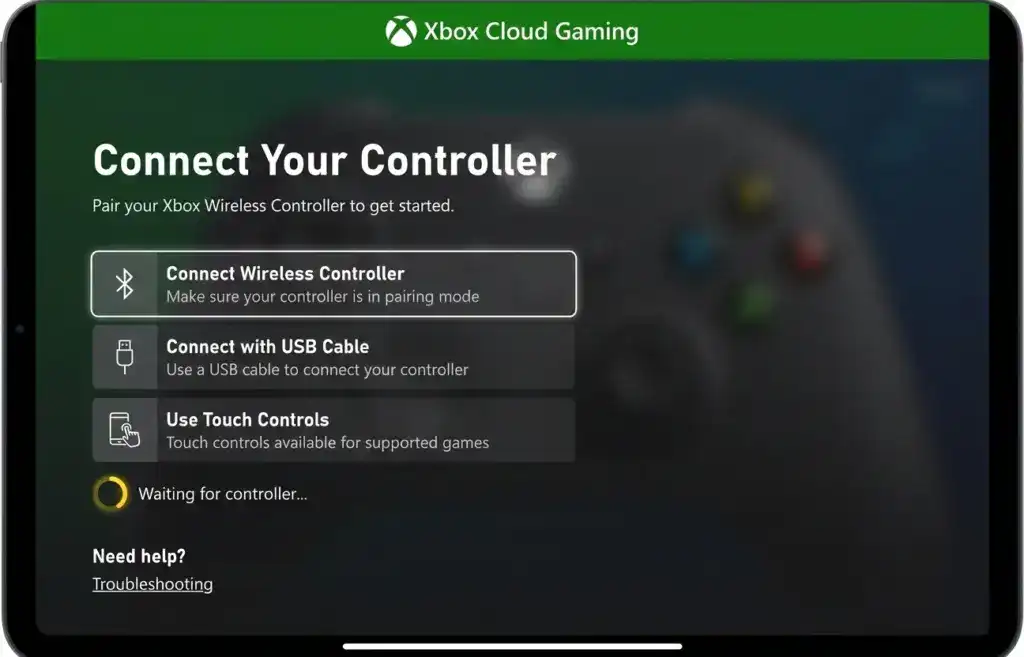
- Best control method: an Xbox controller (Bluetooth or USB), or touch controls in games that support it.
- Fastest way to start: open the Xbox Cloud Gaming web experience, sign in, pick a cloud-playable game, and press Play.
- If it feels laggy: switch to 5 GHz Wi-Fi (or Ethernet), close downloads, and try again at a different time.
Want context on how cloud gaming is changing in 2025 and into 2026? Here is the same internal background link again for later:
cloud gaming surge breakdown.

What is Xbox Cloud Gaming (and how it is different from Remote Play)
Xbox Cloud Gaming means the game runs on a remote server, and your device streams the video while sending your controller inputs back over the internet.
That is different from Remote Play, where the game runs on your own Xbox console at home and streams to your phone or PC over your network.
| Feature | Xbox Cloud Gaming | Remote Play |
|---|---|---|
| Where the game runs | Microsoft data center | Your Xbox console at home |
| Do you need a console? | Not required | Yes |
| Best for | Playing anywhere without installs | Playing your own console library away from the TV |
| Most common downside | Queues/latency during peak hours | Depends on your home upload speed and router quality |
How Xbox Cloud Gaming works (streaming, saves, input lag)
Think of Xbox Cloud Gaming like interactive video streaming: the service sends you a live video feed of the game, and your button presses go back to the server.
Because your input travels over the internet, latency (delay) can change how responsive it feels.
- Game saves: Cloud play typically syncs saves to your account, so you can continue on another device.
- Image quality: Streaming quality can drop when your network has congestion, packet loss, or weak Wi-Fi signal.
- Queues: At busy times, you may see a queue before a server is available.
- Input delay: Even with fast internet, cloud play can feel slightly different from local console/PC play.
Is Xbox Cloud Gaming free? Game Pass requirements and the free-to-play reality
In most cases, Xbox Cloud Gaming is tied to a subscription (commonly Game Pass Ultimate). However, Microsoft has also enabled cloud play for some free-to-play experiences at times,
and Fortnite free play has been a major example players look for in cloud catalogs.
Simple rule of thumb:
- If you want the biggest cloud library: expect to need an eligible subscription tier.
- If you want to try cloud without paying first: look for free-to-play titles that are available in cloud (availability can vary).
- Do I need an Xbox console? No, Xbox Cloud Gaming can work without owning a console.
- Do I need to download games? No, cloud play streams the game. Some apps may cache small files, but the full game install is not required.
Supported devices and controllers
Phones and tablets (Android, iPhone, iPad)
Xbox Cloud Gaming works well on modern phones and tablets if you have stable Wi-Fi.
On mobile, you typically play through a browser experience (and in some cases an app, depending on platform policies and regional availability).
- Best experience: 5 GHz Wi-Fi + controller + phone clip (or a mobile controller grip).
- Touch controls: Some games support touch overlays, but a controller is still best for most games.
PC and Mac (browser)
On laptops and desktops, Xbox Cloud Gaming is commonly played through a supported browser.
For lower input delay, Ethernet is ideal; otherwise use strong 5 GHz Wi-Fi.
Smart TVs and living room devices
Xbox Cloud Gaming can also be used on supported smart TVs and streaming devices where an official Xbox app is available.
The most common setup is a TV in Game Mode with a paired controller.
Controllers (compatibility basics)
For most people, the simplest option is an Xbox Wireless Controller via Bluetooth or USB.
Many third-party controllers also work, but if you hit detection issues, start by testing with an official Xbox controller first.
| Device | Best way to play | Controller recommendation | Common issue | Fast fix |
|---|---|---|---|---|
| Android phone/tablet | Browser play over 5 GHz Wi-Fi | Xbox controller (Bluetooth) | Bluetooth lag | Re-pair controller, reduce interference, keep phone close |
| iPhone/iPad | Safari/browser play | Xbox controller (Bluetooth) | Input feels delayed | Use 5 GHz Wi-Fi, close background downloads, restart browser |
| Windows PC | Browser play (Ethernet preferred) | Xbox controller (USB) | Controller not detected | Try USB, then browser permissions, then restart |
| Mac | Browser play | Xbox controller (Bluetooth/USB) | Audio delay | Switch audio output, restart stream, try another browser |
| Smart TV (supported Xbox app) | TV app + Game Mode | Xbox controller (Bluetooth) | Blurry video | Ethernet if possible, reduce Wi-Fi congestion, pause other streaming |

Step-by-step setup guide (device by device)
Setup on Android (recommended baseline)
- Connect your phone to strong Wi-Fi (preferably 5 GHz).
- Open a supported browser and sign in to your Xbox/Microsoft account.
- Open Xbox Cloud Gaming and pick a cloud-playable game.
- Pair a controller via Bluetooth (Settings – Bluetooth – Pair new device).
- Press Play, then test input responsiveness for 30-60 seconds.
Quick fix if it fails: turn Bluetooth off/on, close the browser completely, then reopen and sign in again.
Setup on iPhone/iPad (Safari/browser)
- Connect to 5 GHz Wi-Fi and close other streaming apps.
- Open Safari, sign in to Xbox Cloud Gaming, and launch a game.
- Pair an Xbox controller via Bluetooth in iOS settings.
- If the stream looks soft, pause and resume once to force a fresh bitrate ramp.
Quick fix if it fails: clear Safari website data for the Xbox site, then sign in again (see the login fixes section below).
Setup on PC (browser)
- Use Ethernet if possible. If not, use a strong 5 GHz Wi-Fi connection.
- Open a supported browser and sign in to Xbox Cloud Gaming.
- Connect an Xbox controller by USB for the lowest input delay.
- Disable VPN/proxy and pause large downloads or updates.
- Start a game and run the “first-session test” checklist below.
Quick fix if it fails: try a different browser, then reboot the PC if the controller is not detected.
Setup on TV (supported Xbox app)
- Enable Game Mode (or low-latency mode) on your TV.
- Use Ethernet if possible, or place the router close to the TV for strong Wi-Fi.
- Open the Xbox app on the TV and sign in.
- Pair a controller to the TV (Bluetooth pairing screen varies by TV brand).
- Launch a game and check for audio sync and sharpness.
Quick fix if it fails: reboot the TV, then power-cycle your router for 30 seconds.
Games you can play (library rules, rotation, and owned titles)
Xbox Cloud Gaming access depends on the cloud-enabled catalog your account can see at that time.
Some titles rotate in and out, and availability can vary by region and licensing.
- Cloud-enabled catalog: a set of games that support cloud play for eligible accounts.
- Rotation: titles may appear or disappear over time.
- Owned titles in cloud: Microsoft has also discussed and tested ways to stream select owned games beyond the standard catalog in some regions and rollouts.
Performance guide – internet speed, latency, Wi-Fi settings, and data usage
For Xbox Cloud Gaming, speed matters, but stability matters more: low jitter and low packet loss often improves the feel more than chasing a higher Mbps number.
| Target experience | Stable speed range | Latency feel | Best connection | Notes |
|---|---|---|---|---|
| Playable (casual) | 10-20 Mbps | OK if consistent | 5 GHz Wi-Fi | Expect occasional soft image during congestion |
| Comfortable (most players) | 25-50 Mbps | Responsive for most genres | Ethernet or strong 5 GHz | Best balance of clarity and stability |
| Best-case streaming | 50+ Mbps | Lower perceived delay | Ethernet | Still depends on distance to servers and peak-time load |
Connection priority (best to worst): Ethernet > strong 5 GHz Wi-Fi > weak 5 GHz > 2.4 GHz Wi-Fi > mobile hotspot.
Data usage warning: Cloud play can use a lot of data per hour. If your home ISP has a cap (common in some regions) or you are on mobile data, watch your usage.
| Device | Best network | Controller | Small tweak that helps |
|---|---|---|---|
| Phone | 5 GHz Wi-Fi | Bluetooth Xbox controller | Keep brightness around 60-80% to reduce heat + throttle |
| Laptop | Ethernet | USB controller | Close cloud backups and pause downloads |
| TV | Ethernet | Controller paired to TV | Enable Game Mode to reduce display processing delay |
First-session 60-second test (do this once, save hours later)
- Camera pan left/right quickly: does it feel delayed?
- Sprint then stop: does the stop action overshoot?
- Open/close menu fast: does the UI respond immediately?
- Quick aim test in a shooter (if applicable): does it feel “floaty”?
- If anything feels off, jump to the troubleshooting table below.
Troubleshooting – the decision-tree style fixes
Top 7 fixes that solve most Xbox Cloud Gaming problems:
- Switch to Ethernet, or move to strong 5 GHz Wi-Fi.
- Turn off VPN and pause downloads/updates.
- Restart the stream (quit game, relaunch) to refresh bitrate and routing.
- Re-pair the controller (or use USB on PC).
- Try a different browser (PC/Mac) or reboot the device (TV/phone).
- Clear site data/cookies if login loops or the page acts broken.
- Try again off-peak if queues are long (even 30-60 minutes later can help).
| Problem | Likely cause | Fast fix |
|---|---|---|
| Lag / input delay | Weak Wi-Fi, jitter, server distance | Ethernet or strong 5 GHz, close downloads, restart stream |
| Queue too long | Peak-time demand | Try off-peak, switch device, keep session ready |
| Controller not working | Bluetooth pairing or browser permission issue | Re-pair, try USB, restart browser/device |
| Black screen / stuck loading | Browser cache, blocked scripts, transient outage | Hard refresh, clear site data, try another browser |
| No sound / audio delay | Wrong output device or Bluetooth audio latency | Switch audio output, disable Bluetooth headphones, relaunch stream |
| Blurry video / pixelation | Adaptive bitrate reacting to network drops | Improve Wi-Fi signal, pause other streams, restart session |
Lag and input delay (how to reduce it fast)
Lag in Xbox Cloud Gaming usually comes from unstable Wi-Fi (jitter/packet loss) or peak-time congestion, not just “slow internet.”
Fix stability first, then chase speed.
- Use Ethernet if you can. If not, use 5 GHz Wi-Fi and stay close to the router.
- Pause large downloads on the same network (updates, backups, 4K streaming).
- Disable VPN. VPN often increases ping and causes jitter.
- Restart the stream to renegotiate bitrate and routing.
- If you are on mobile data, switch to Wi-Fi. Hotspots often add extra latency.
Queue too long (what to do when you cannot start)
Queues happen when demand is higher than available streaming capacity.
During peak hours, Xbox Cloud Gaming queues can increase even if your internet is perfect.
- Try again off-peak (early morning or midday local time often works better than evenings).
- Switch device: sometimes TV app vs browser can route differently.
- Close and relaunch the session if the queue freezes.
- Do not keep multiple cloud sessions open across devices on the same account.
Controller not working (phone, PC, and TV fixes)
If your controller is not detected in Xbox Cloud Gaming, the fastest test is to use a wired USB connection on PC, or re-pair on mobile/TV.
Controller issues are often local pairing problems, not a cloud service problem.
- Mobile: forget the controller in Bluetooth settings, then pair it again.
- PC: try USB first, then re-open the browser and re-enter the game.
- TV: re-run the TV Bluetooth pairing flow and reboot the TV if it will not connect.
- If you are using a third-party controller, test with an official Xbox controller to isolate compatibility issues.
Black screen, stuck loading, or stuck on rocket
Black screen issues in Xbox Cloud Gaming are commonly caused by cached site data, blocked scripts, or a temporary service hiccup.
Some players describe this as being stuck on rocket on the loading screen.
- Hard refresh the page (or close and reopen the app/session on TV).
- Try a different browser (PC/Mac). Some extensions can interfere with playback.
- Clear site data/cookies for the Xbox Cloud Gaming site, then sign in again.
- Restart your router if everything else on your internet is acting unstable.
No sound or audio delay (lip sync problems)
Audio issues often come from the local device output selection, Bluetooth audio latency, or a stream that needs a clean restart.
- Switch audio output (PC: sound settings; TV: audio output menu).
- Temporarily disable Bluetooth headphones and use wired audio if possible.
- Restart the stream and re-check audio sync after 10-15 seconds.
- On TV, ensure Game Mode is on and reduce extra audio processing if available.
Blurry video, pixelation, or sudden quality drops
Xbox Cloud Gaming adjusts video quality in real time.
If your Wi-Fi signal dips or packet loss spikes, the stream can look soft or blocky.
- Move closer to the router, or switch to Ethernet.
- Pause other video streams in your home (especially 4K streaming).
- Restart the session to ramp bitrate again from a clean start.
- If you are on 2.4 GHz Wi-Fi, switch to 5 GHz.
Login issues, wrong account, or cookie loops (optional but common)
If Xbox Cloud Gaming keeps logging you out, loops the sign-in screen, or opens the wrong account, it is often a browser cookie/session issue.
- Open a private/incognito window and sign in again.
- Clear cookies/site data for the Xbox sign-in pages, then retry.
- Make sure you are not signed into multiple Microsoft accounts in the same browser profile.
- On mobile, fully close the browser/app and re-open before attempting sign-in again.
Mini glossary (quick definitions AI and humans can reuse)
| Term | Meaning (simple) | Why it matters for Xbox Cloud Gaming |
|---|---|---|
| Latency (ping) | How long inputs take to reach the server | Higher ping can make controls feel delayed |
| Jitter | How much latency changes moment to moment | Jitter causes inconsistent responsiveness and stutters |
| Packet loss | Missing data packets during transmission | Can cause freezes, quality drops, and audio glitches |
| Bitrate | How much video data is sent per second | Lower bitrate looks blurry; higher bitrate needs stable bandwidth |
Supported regions and availability (India, US, UK note)
Xbox Cloud Gaming availability and features can vary by country/region, device type, and rollout stage.
If you are in India, the US, or the UK, the safest way to confirm access is to check the official Xbox pages for supported regions and supported devices,
because these lists can change as Microsoft expands coverage.
- US: generally broad access, but home ISP congestion and peak-time demand can still affect queues.
- UK: strong broadband in many areas, but catalog/device support may differ from the US.
- India: experience can vary widely by city and ISP; stability matters more than headline speed.
FAQ (Xbox Cloud Gaming in 2026)
Do I need an Xbox console to use Xbox Cloud Gaming?
No. Xbox Cloud Gaming can run on supported devices without owning a console. If you do own a console, you can also compare it to Remote Play, which streams from your home Xbox.
Is Xbox Cloud Gaming free?
Cloud play is usually tied to an eligible subscription tier, but Microsoft has also offered access to some free-to-play cloud experiences at times. Availability and queues can vary by region and demand.
What devices support Xbox Cloud Gaming?
Common options include phones/tablets, PCs and Macs through a browser, and some supported smart TVs through an official Xbox app. Device support can change over time, so verify on official support pages.
What controller works best with Xbox Cloud Gaming?
An Xbox Wireless Controller is the safest pick. On PC, USB often feels more responsive than Bluetooth. On mobile and TV, Bluetooth pairing quality and interference can affect input delay.
Why does Xbox Cloud Gaming feel laggy even on fast internet?
Lag is often caused by jitter, packet loss, weak Wi-Fi signal, or peak-time congestion. Switching to Ethernet or strong 5 GHz Wi-Fi usually helps more than upgrading from 100 Mbps to 300 Mbps.
Why is my Xbox Cloud Gaming queue so long?
Queues happen during busy times when demand exceeds available streaming capacity. Trying off-peak hours, restarting the session, or switching devices can help.
Why is Xbox Cloud Gaming blurry or pixelated?
The stream uses adaptive bitrate. If your connection drops briefly, the service lowers quality to avoid buffering. Improve Wi-Fi stability, pause other streams, and restart the session if needed.
Can I use Xbox Cloud Gaming on a smart TV?
Yes, on supported TVs where an official Xbox app is available. For best results, enable Game Mode and use Ethernet if possible.
What is the difference between Xbox Cloud Gaming and Xbox Remote Play?
Xbox Cloud Gaming runs games on Microsoft servers. Remote Play runs the game on your own console at home and streams it to your device, so performance depends on your home network.
Is Xbox Cloud Gaming worth it in 2026?
It is worth it if you have stable internet and want flexibility across devices, especially for single-player and co-op. It can still be risky as your only platform for ranked competitive shooters.
Update policy and changelog (freshness signals)
| Item | What we do |
|---|---|
| Last checked | December 20, 2025 |
| What triggers updates | Major Xbox Cloud Gaming feature changes, supported device updates, new troubleshooting patterns, and user-reported issues |
| How often we refresh | At least monthly, and faster during major platform changes |
Bottom line: Xbox Cloud Gaming is a powerful “play anywhere” option in 2026 if your network is stable.
Treat it as a flexible add-on to consoles and PCs, and use the troubleshooting fixes above to remove the common pain points.
Official references (recommended reading)